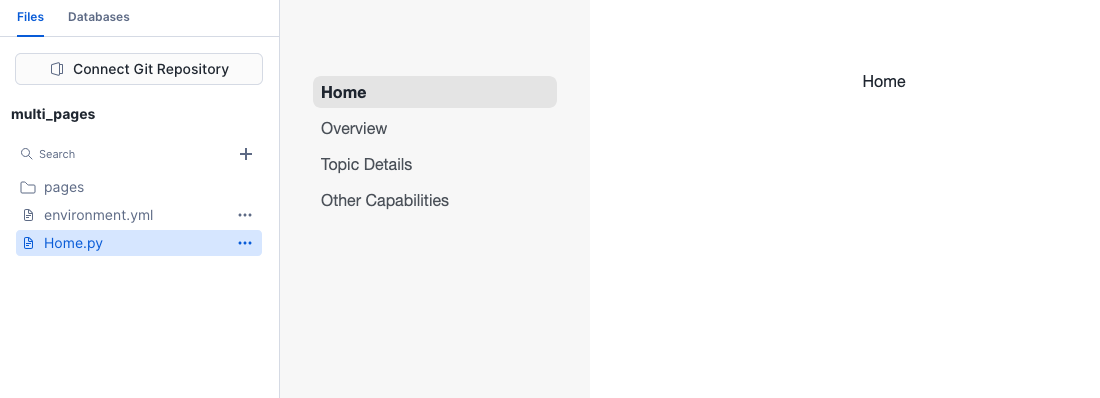
I am working on an Streamlit app inside Snowflake. The issue I’m encountering is that by default I have to write the main page in streamlit_app.py (this file can’t be removed). My app has 3 other pages saved in “pages” folder.
It causes an automatic left-side navigation bar to appear and the names of the pages are properly shown in the side bar (“Overview”, “Topic Details” and “Other Capabilities”) even if the .py files are “1_Overview.py”, “2_Topic_Details.py” and “3_Other_Capabilities”. However, the name of the main page in the navbar is “streamlit app”. I want it to show “Home” instead.
Is there any way to do it? In regular streamlit I would use the config.toml to hide the default sidebar and create my own one but in Snowflake-Streamlit it does not work. I also tried with the pages.toml file but again not working.
SiS defaults to creating the streamlit_app.py if you create it using the Snowsight UI but this can be changed using the alter streamlit command in a SQL worksheet.
Create a new file in your app called Home.py and copy your code from from the default streamlit_app.py file into there. It needs to be capitalised as it looks like the default behaviour for page names doesn’t work on this file.
Take a note of your Streamlit app identifier from the url when you’re editing it. Your url will end in something like streamlit-apps/SNOWFLAKE_LEARNING_DB.PUBLIC.CP8FILIA9UAGZUPG/edit. You want the CP8FILIA9UAGZUPG part. You can also run show streamlits in a worksheet to get a list of all your apps and make a note of the name field for the app you want to amend.
In a worksheet you then want to run the following with the identifier changed to match the app you’re amending.
alter streamlit "CP8FILIA9UAGZUPG"
set main_file = 'Home.py';
If you refresh the app, you should now be pointing to Home.py as your entrypoint and your sidebar should show Home rather than streamlit app. You should also be able to delete the default file now to tidy things up.
Alternatively, you can use st.navigationst.navigation - Streamlit Docs to set up the pages in your app – this allows you to change the names or icons of any pages in the sidebar, independent of what the actual files are named.